How to Type Urdu in CorelDRAW (Step-by-Step Guide)
Typing Urdu in CorelDRAW confuses many designers. Letters appear separated, words run left to right, or the font looks plain. The good news is that you can fix all of this with a few simple settings.
This guide shows you how to get clean, connected Urdu text for stickers, banners, and logos.
Why Urdu Text Breaks in CorelDRAW
Urdu is written right to left, and its letters change shape when they join. Some CorelDRAW versions do not handle this well, especially older ones such as X7.
The usual problems are:
- Letters appear disconnected
- Words come out in the wrong order
- The font does not support Urdu
Step 1: Add the Urdu Keyboard in Windows
You need an Urdu keyboard before you type anything.
- Open Settings → Time & Language → Language & region.
- Click Add a language and choose Urdu (Pakistan).
- Finish the installation and keep the keyboard option on.
You can now switch between English and Urdu using Windows + Space or Alt + Shift.
Step 2: Install a Good Urdu Font
Many fonts do not include Urdu letters. Choose one made for Urdu.
- Jameel Noori Nastaleeq: the classic newspaper style
- Alvi Nastaleeq: popular for banners and designs
- Noto Nastaliq Urdu: a free font that works well on modern systems
- Noto Naskh Arabic: a simple, clean option
Download the font, right-click it, and choose Install. Then restart CorelDRAW so it appears in the font list.
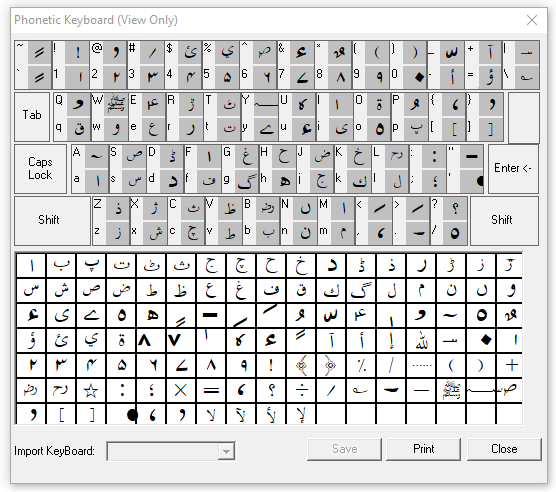
Step 3: Write Urdu in CorelDRAW
- Open CorelDRAW and select the Text tool (F8).
- Click on the page and switch your keyboard to Urdu.
- Choose your Urdu font from the property bar.
- Type your text.
- If the words run in the wrong direction, look for the right-to-left text direction option in the text settings. Newer versions include it.
Newer versions of CorelDRAW generally handle Urdu text better than older ones.
Step 4: Fix Broken or Separated Letters
If the letters still do not join, try one of these methods.
Method 1: Type in Another Program
- Type your text in Microsoft Word or InPage.
- Copy it and paste it into CorelDRAW.
- Check that the letters join correctly.
Method 2: Import as a Graphic
- Type the text in InPage or Word.
- Export it as a PDF or a high-quality image.
- Import it into CorelDRAW.
A PDF stays sharp at any size. An image does not, so use a large size if you choose that option.
Tips for Cleaner Urdu Designs
- Increase the line spacing, because Nastaliq letters need more vertical room.
- Convert the final text to curves (Ctrl + Q) before sending the file to a printer or cutter.
- Keep a copy of the editable file in case you need to fix a spelling mistake later.
- Proofread carefully, because a missing dot can change the meaning of an Urdu word.
Quick Troubleshooting
- Squares or question marks appear: the font does not support Urdu. Choose another font.
- Text is left aligned: switch the paragraph alignment to right.
- Letters are separate: use Method 1 or 2 above.
Conclusion
Urdu typing in CorelDRAW is easy once your keyboard, font, and text direction are set correctly. Start with a proper Urdu font, and use the copy-paste or PDF method if your version struggles.
Try these steps on your next design. Did they work for you, or are you stuck on a certain problem? Tell us in the comments below, and we will help you fix it.